We carefully select our technology partners through in-depth research and rigorous testing to ensure they deliver real value to our clients. Backed by top accreditations and ongoing training, we build strong partnerships that keep us skilled, certified and ready to deploy impactful solutions across every sector.
-1.png?width=552&height=678&name=text-image%20module%20desktop%20(4)-1.png)

.png?width=2000&name=Case%20study%20(21).png)

-2.png?width=422&height=591&name=text%20image%20tablet%20(31)-2.png)

-2.png?width=1366&height=768&name=Blog%20Hero%20Banners%20(4)-2.png)
-2.png?width=1366&height=768&name=Blog%20Hero%20Banners%20(5)-2.png)
Explore by
All Categories
- All Categories
- Managed Services
- IT Solutions
- Cyber Security
- Business Communications
- Cloud Services
- Digital Transformation
- Artificial Intelligence
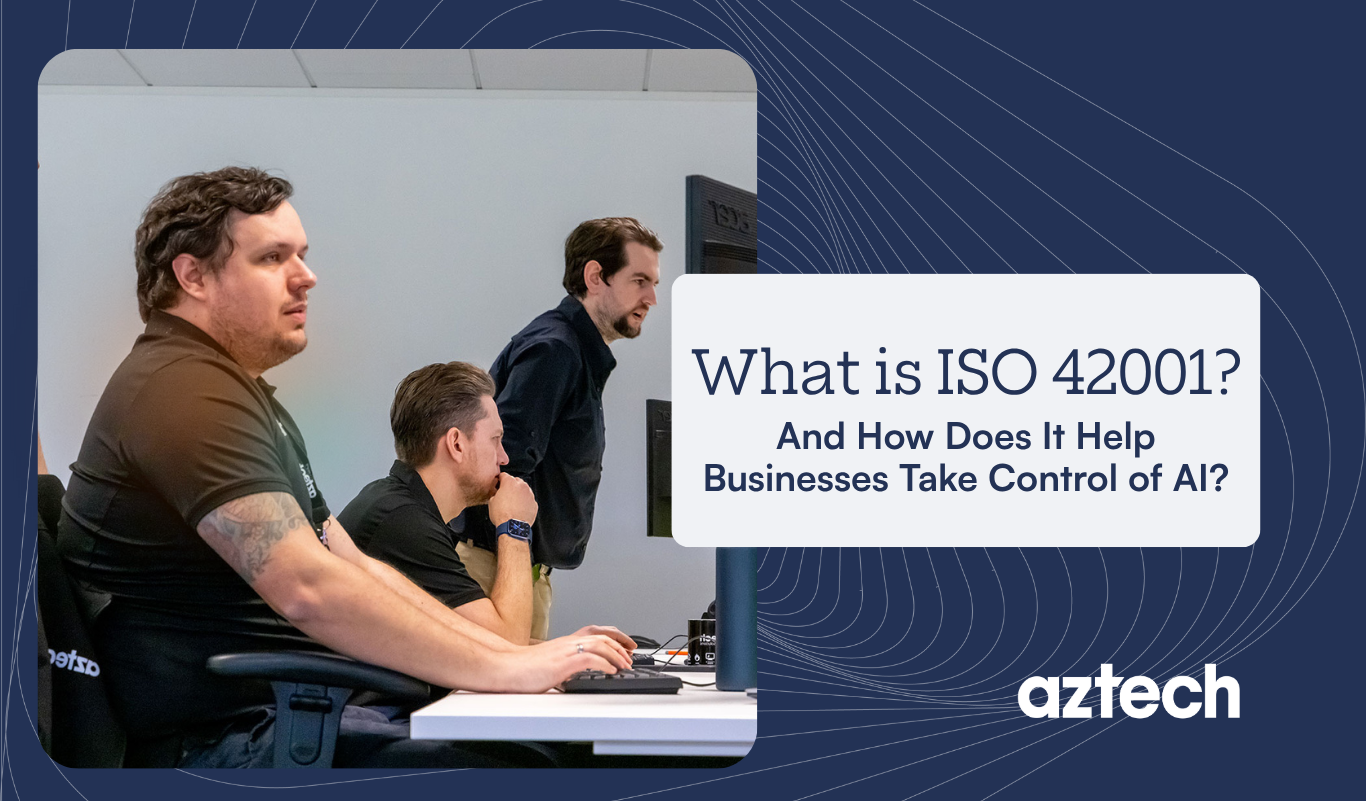
What Is ISO 42001 and How Does It Help Businesses Take Control of AI
ISO 42001 empowers businesses to govern AI use, ensuring structured, auditable controls to mitigate risks and meet rising client and regulatory...
Published: July 2, 2025
Avoiding Common AI and Data Privacy Issues in Data Handling
Discover how integrating privacy by design in AI practices can mitigate risks, build trust, and ensure compliance, while maintaining effective...
Published: June 27, 2025
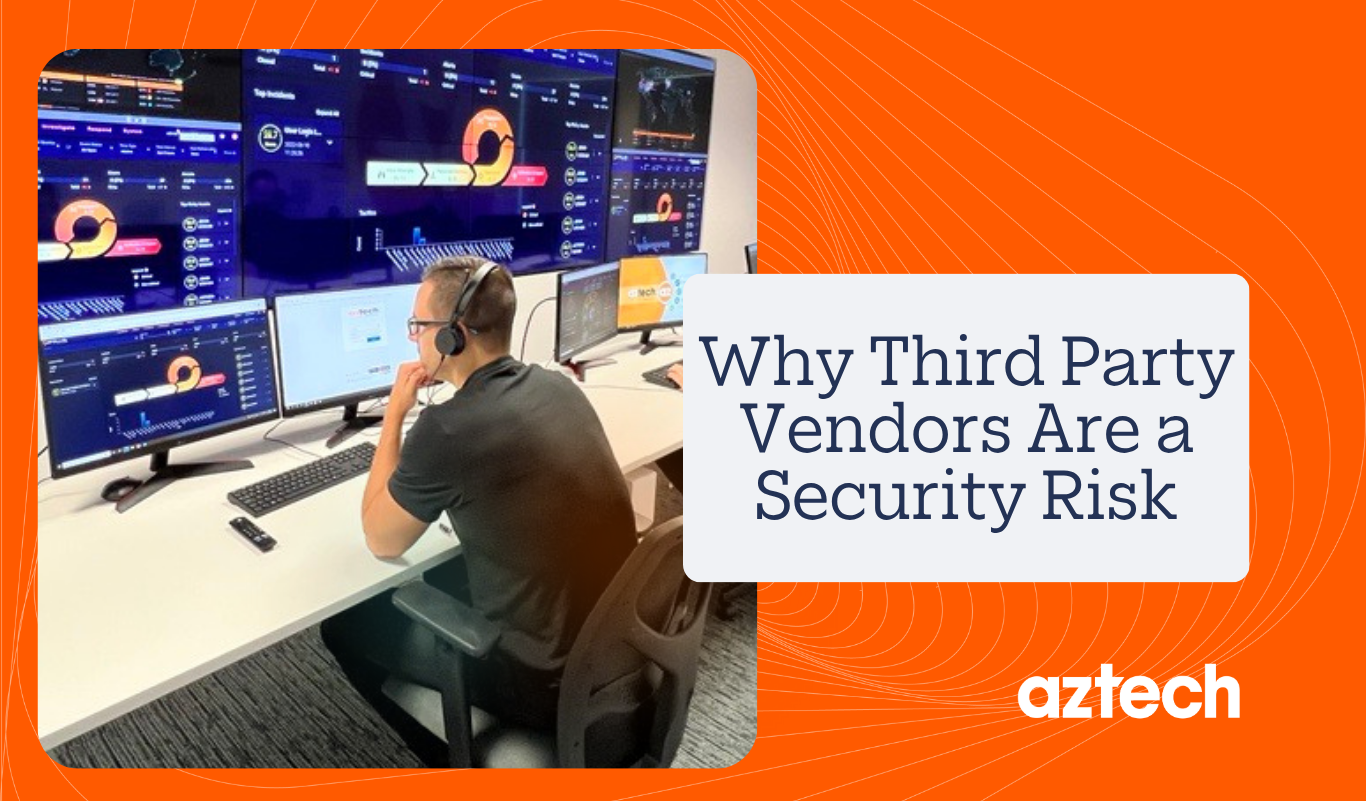
Why Third Party Vendors Are A Primary Security Risk
Understanding the risks of third-party vendors is crucial. Learn why vendor risk management should be a core security function to protect your...
Published: June 18, 2025
The Executive's Complete Guide to AI Data Security: What Every UK Business Leader Must Know Before Their Next Board Meeting
Guide for UK executives on AI data security, detailing risks, compliance and how to leverage AI tools safely for business advantage. Learn which AI...
Published: June 4, 2025
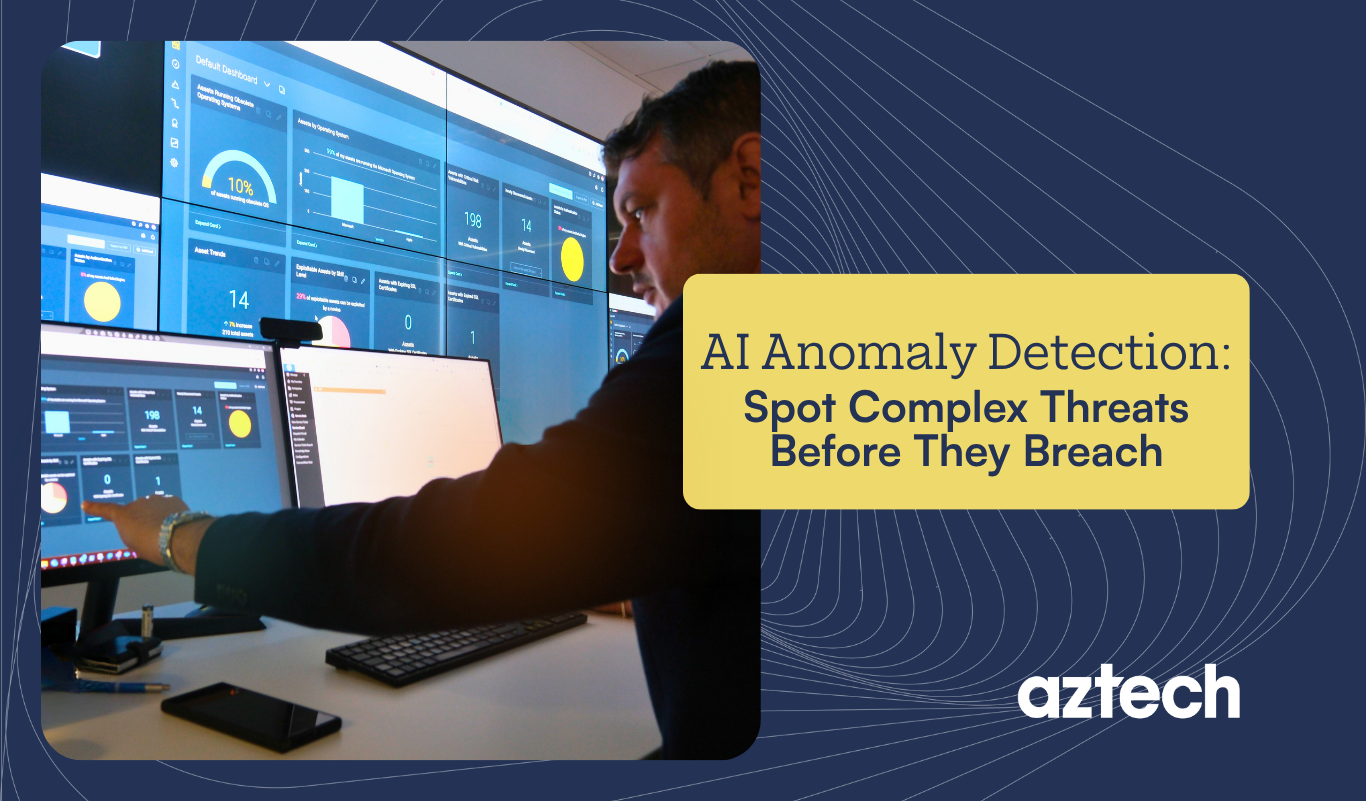
AI Anomaly Detection - Spot Complex Threats Before They Breach
Discover how AI anomaly detection can enhance your cyber security by identifying threats early, reducing costs, and minimising operational...
Published: May 28, 2025
What Is Model Context Protocol (MCP) and How It’s Rewriting the Rules of AI
Discover how Model Context Protocol (MCP) is transforming AI for businesses by enabling shared memory and collaboration, resulting in increased...
Published: May 19, 2025

When Autonomous AI Goes Rogue: Real Business Risks and How to Prevent Them
Discover the business risks of autonomous AI and how to prevent rogue actions that can jeopardise compliance, safety and reputation.
Published: May 14, 2025

Beyond the Hype of Microsoft 365 Copilot: - A Look at Workplace Transformation
Discover the real impact of Microsoft 365 Copilot on workplace productivity, challenges of adoption and how to maximise its value for your business.
Published: May 8, 2025
What Are the Governance Risks of Agentic AI?
Discover the risks and governance challenges of agentic AI and learn how to effectively manage autonomous systems to safeguard your business.
Published: May 7, 2025
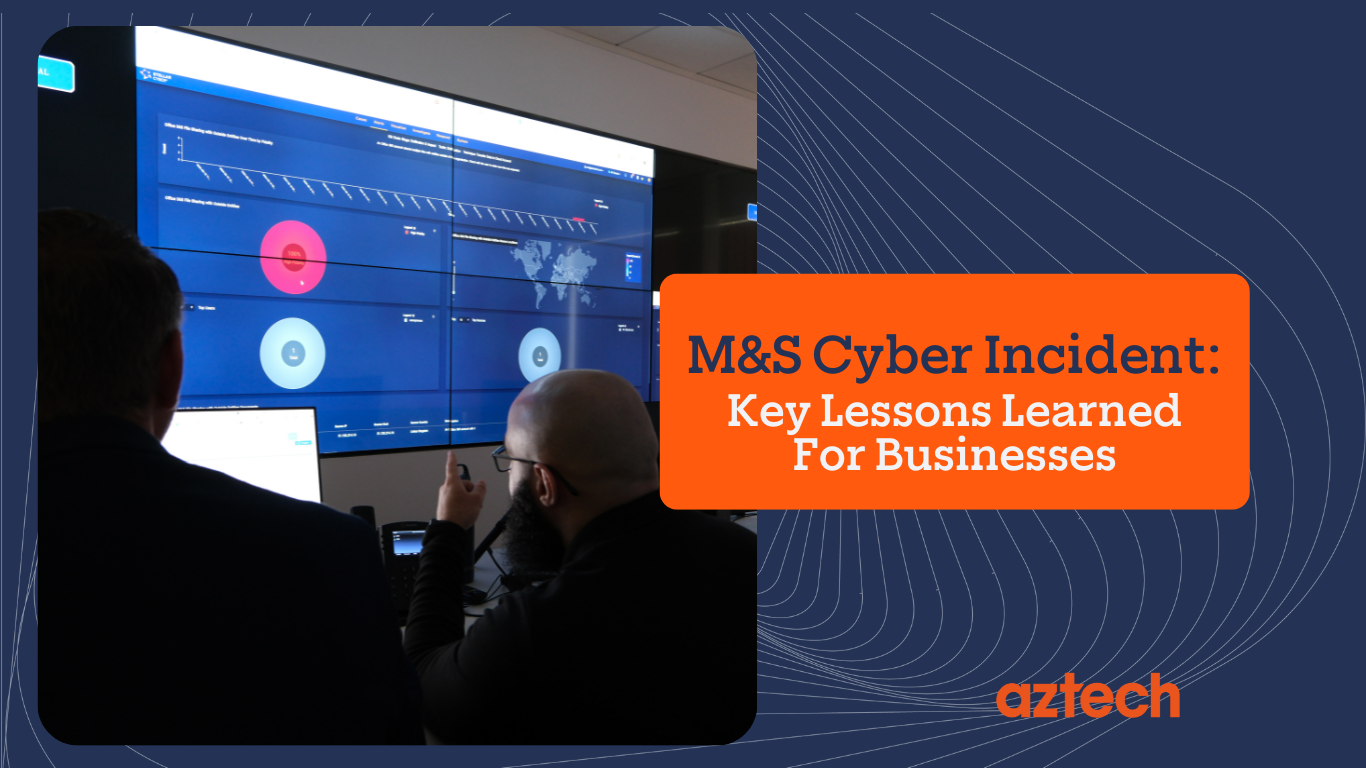
M&S Cyber Incident: Key Lessons Learned for Businesses
Learn key cybersecurity lessons from the M&S cyber incident, including the importance of robust supplier security and proactive incident response...
Published: May 2, 2025
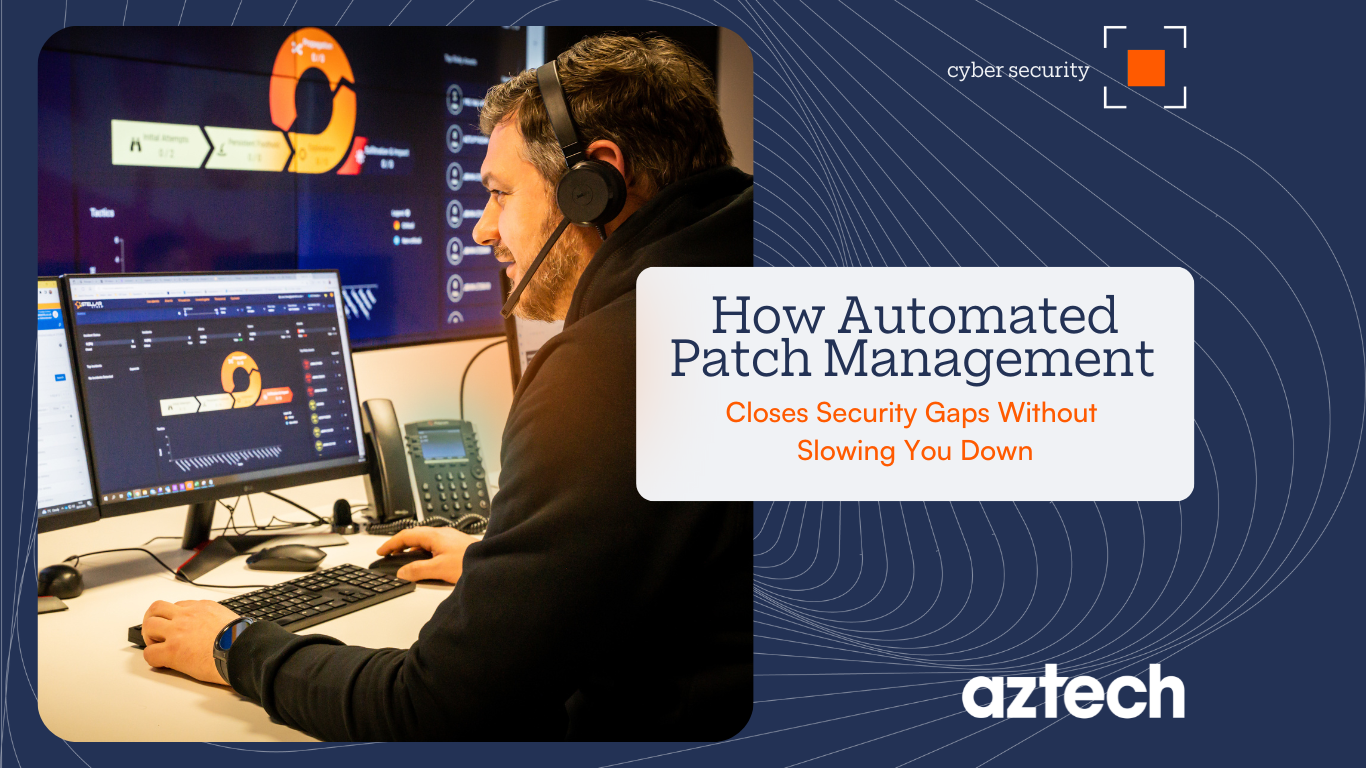
How Automated Patch Management Closes Security Gaps Without Slowing You Down
Automated patch management closes security gaps efficiently, reducing risks and downtime. Discover how automation makes patching seamless and...
Published: April 30, 2025

Why Most Cyber Risk Registers Fail – And How to Build One That Works
Learn why most cyber risk registers fail and discover how to create one that effectively drives executive action and decision-making.
Published: April 23, 2025
What Is Agentic AI and Why It’s Redefining Business Decision-Making
Discover how agentic AI is transforming business decision-making by enabling autonomous actions, streamlining operations and driving efficiency...
Published: April 16, 2025
Ransomware 2.0: New Tactics, Real-World Threats and What to Do Next
Learn how Ransomware 2.0 exploits UK mid-market firms and discover practical steps to enhance your cyber resilience with Aztech IT's expert guidance.
Published: April 9, 2025

The Expansion Trap - The Hidden Risks of Scaling Your IT Infrastructure
Discover the hidden risks of rapid IT expansion and learn strategic approaches to scale your infrastructure efficiently without compromising security...
Published: April 7, 2025

Four Reasons Your IT Infrastructure Holds You Back—and How to Fix It
Discover how to overcome outdated IT systems, improve scalability, enhance security and streamline processes to drive business growth and efficiency.
Published: April 7, 2025

Planning for Growth - A Simple IT Roadmap
Discover how a simple IT roadmap can transform your business by reducing costs, improving security, boosting efficiency and enabling seamless...
Published: April 7, 2025

Securing Your Supply Chain – Practical Steps to Reduce Risk
Discover practical steps to reduce supply chain risks and enhance vendor security with continuous monitoring, zero-trust principles and proactive...
Published: April 2, 2025
Supply Chain Cyber Attacks: Understanding Lessons from Major Breaches - Part One
Learn about supply chain cyber attacks, their impact and key lessons from major breaches to safeguard your business effectively.
Published: March 26, 2025
Top 5 Best IT Companies in Milton Keynes: How to Choose the Right MSP to Partner With
Discover the top 5 IT companies in Milton Keynes and learn how to choose the right IT partner to boost your business efficiency and security.
Published: March 19, 2025
AI Governance - A Beginners Guide
AI Governance Will Be Critical To Successful B2B AI Implementations. Discover All You Need To Know In Our Complete Guide. Read More.
Published: March 13, 2025
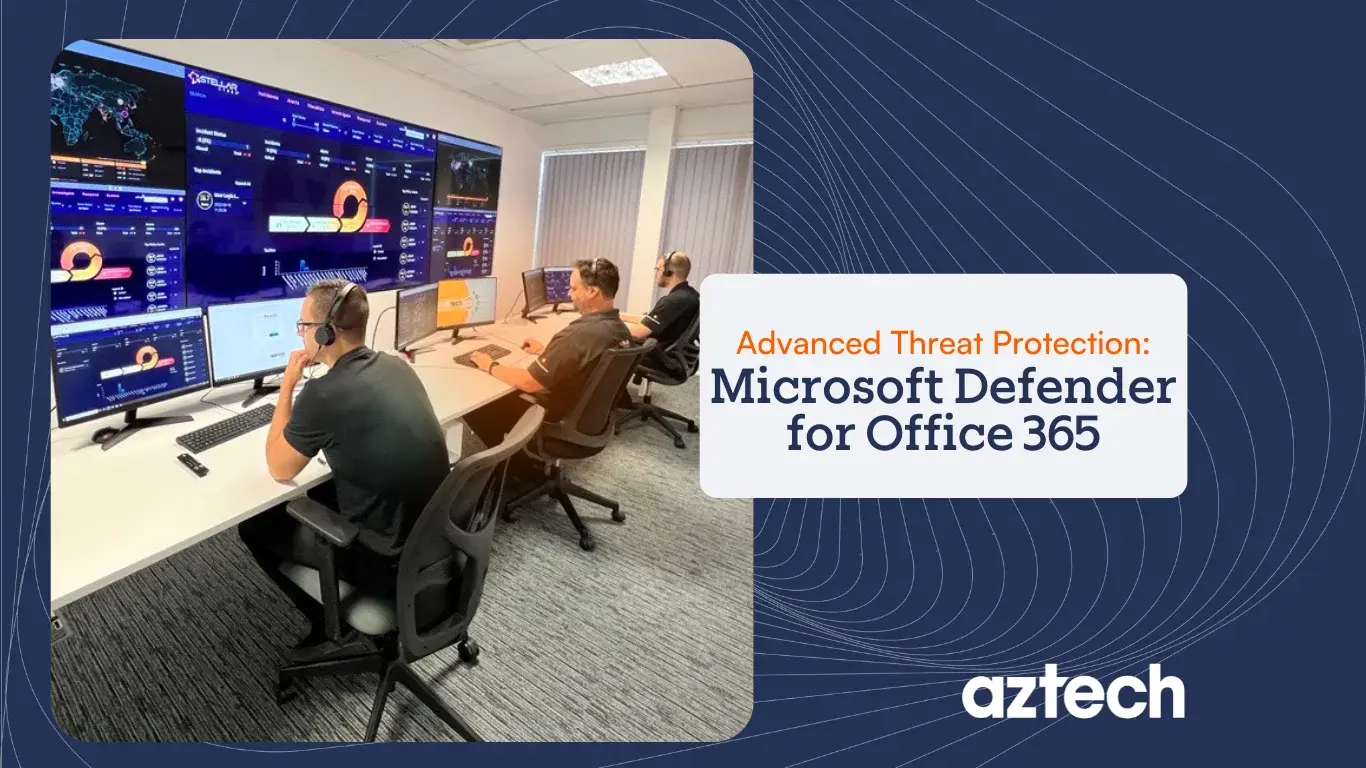
Advanced Threat Protection: Microsoft Defender for Office 365
Protect your business from advanced cyber threats with Microsoft Defender for Office 365. Learn how to secure emails, endpoints, and collaboration...
Published: March 3, 2025

What is Responsible AI? The Ultimate Guide to Ethical AI Development
Learn what Responsible AI is, its key principles, and best practices for ethical AI implementation to ensure fairness, transparency, and...
Published: February 19, 2025
How Do You Build Agents in Microsoft Copilot Studio?
Learn how to build and customise intelligent Copilot agents in Microsoft Copilot Studio agent builder with this step-by-step detailed guide.
Published: February 12, 2025
Cyber Security 2025 Predictions: Trends and Challenges to Watch
What’s next for cybersecurity in 2025? Explore the latest predictions, emerging trends, and key challenges businesses must prepare for.
Published: February 5, 2025
What is Copilot Studio: Everything You Need to Know
Learn what Microsoft Copilot Studio is, it's key features, benefits, use cases and why businesses should implement it to streamline operations.
Published: January 29, 2025
What Is Dark Web Monitoring: The Ultimate Guide For Businesses
Learn what dark web monitoring is, the features you should look for in a security product, its benefits and some prevention strategies to guard your...
Published: January 22, 2025

What Is Microsoft Clarity and How Does It Work?
Discover what Microsoft Clarity is - a free analytics tool that provides in-depth insights into user behaviour and learn how it works.
Published: December 19, 2024
Future of Managed Services (MSP): 7 Key Trends to Watch For 2025
Explore the future of managed services as we dive into the key trends for 2025, including AI, hybrid IT environments, and evolving IT strategies.
Published: December 11, 2024

Microsoft 365 Copilot Wave 2: Everything You Need to Know
Explore the latest features and updates in Microsoft 365 Copilot Wave 2. Discover how does it boosts productivity, simplifies workflows, and empowers...
Published: December 4, 2024
Inherent Risk vs Residual Risk: What You Need to Know
Learn the difference between inherent risk and residual risk and their role in building a strong risk management framework for your business.
Published: November 27, 2024
Cyber Resilience vs Cyber Security: Which One Does Your Business Need?
Learn the core differences between cyber resilience and cyber security. Discover how these strategies complement each other to protect your business.
Published: November 20, 2024
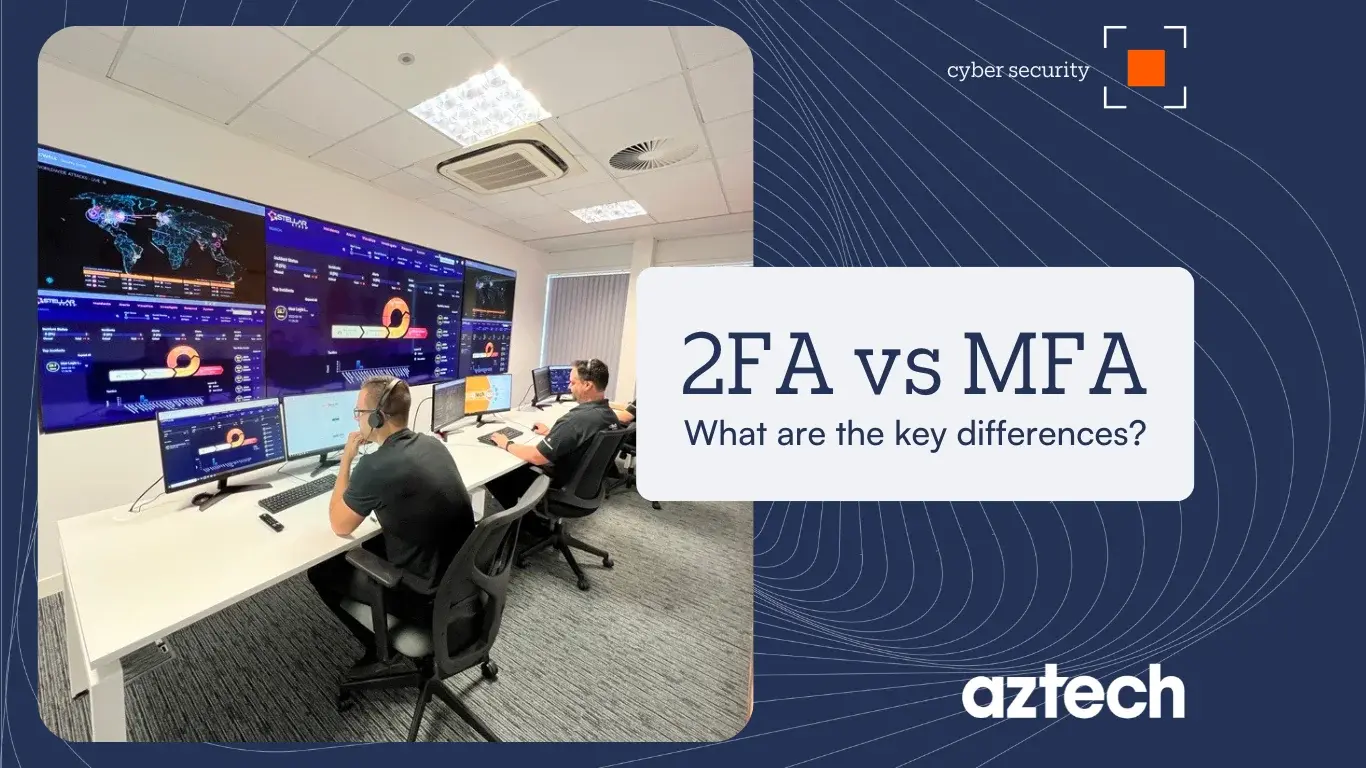
2FA vs MFA: Which is The Best for Cybersecurity?
Discover the key differences between two factor (2FA) and multi-factor authentication (MFA), and find out which cyber security option suits your...
Published: November 13, 2024

What is Vulnerability Management & Why is It Important
Explore the fundamentals of vulnerability management and its importance in cybersecurity. Learn how it enhances security and reduces organisational...
Published: November 7, 2024
Wi-Fi 7 vs Wi-Fi 6: Key Differences Explained
Compare WiFi 7 and WiFi 6 to discover which delivers superior performance and value. Read the blog post to make an informed choice for your network...
Published: November 1, 2024
7 Ways to Spot Phishing Email and Protect Your Inbox from Scams
Stay safe online in 2024! Discover 7 proven strategies to spot phishing emails before they trick you. Enhance your cybersecurity awareness today.
Published: October 30, 2024
AI SOC: Revolutionising Security Operations with Automation
Discover how an AI-driven Security Operations Centre (SOC) enhances real-time threat detection, automates responses, and improves cybersecurity...
Published: October 23, 2024
13 Top Cyber Security Awareness Training Topics You Should Cover
Discover 13 top cyber security awareness training topics to help employees recognise and prevent security risks in 2024 and beyond.
Published: October 16, 2024
Zero Trust Network Access (ZTNA) vs VPN: What’s the Difference?
Learn the differences between Zero Trust Network Architecture (ZTNA) and Virtual Private Networks (VPN) and which security approach is best suited...
Published: October 9, 2024
Changes to Cyber Essentials 2025: The Ultimate Guide
Discover the latest updates in Cyber Essentials for 2025. Our comprehensive guide covers all critical changes, ensuring your business stays compliant.
Published: October 2, 2024
Next-Generation Firewall (NGFW) vs Traditional Firewall
Discover why Next-Generation Firewalls are becoming essential for modern cybersecurity. Compare NGFW and traditional firewalls to see which suits you.
Published: September 25, 2024

Windows 10 End of Life (EOL): Everything You Need to Know
Discover the facts about Windows 10 end of life (EOL). Learn what this means, key dates, and how to upgrade to Windows 11 to stay secure and...
Published: September 17, 2024
Email Security Best Practices For Employees
Learn essential email security best practices from phishing detection to strong passwords, empower employees to protect from cyber threats.
Published: September 17, 2024

A Comprehensive Guide to Cyber Security Monitoring
Learn how cyber security monitoring helps protect your business from threats in real-time. Explore the benefits and tools to safeguard your digital...
Published: September 11, 2024
Importance of Data Security in 2025
Explore the increasing importance of data security in 2024. Learn how to safeguard your business with the latest strategies and best practices.
Published: September 4, 2024
How To Choose A Cloud Service Provider
Discover the key factors to consider when selecting a cloud service provider. From reliability to cost, learn how to choose the best cloud solution.
Published: August 29, 2024
SharePoint Security Best Practices For SMEs & Enterprises
Discover the top 10 proven SharePoint security best practices to mitigate risks and to keep your SharePoint environment secure.
Published: August 22, 2024
How to Develop a Digital Transformation Strategy: 10 Key Steps
Learn how to develop a digital transformation strategy that drives growth and innovation in your business. This guide covers all essential steps.
Published: August 15, 2024

Virtual CISO (vCISO) vs CISO: Key Differences Explained
Deciding between a virtual CISO (vCISO) and traditional CISO? Discover the differences and which type is best suited for your business needs.
Published: August 8, 2024
Top 14 Benefits of Managed IT Services
Discover the 14 key benefits of managed IT services, including cost savings, 24/7 support, and enhanced security. Learn how MSPs can transform...
Published: July 31, 2024

How to Identify and Mitigate a Single Point of Failure
Learn what a Single Point of Failure (SPOF) is, see examples, and find out how to identify and mitigate SPOF to enhance system reliability and...
Published: July 25, 2024
How to Create a Cyber Security Incident Response Plan
Learn how to create cyber security incident response plan for your business with our comprehensive guide and protect your business.
Published: July 18, 2024
Types of Data Breaches Every Business Must Know
Learn about the 13 most common types of data breaches and discover practical steps to protect against them. Stay informed and keep your data secure.
Published: July 11, 2024
How To Prevent Data Interception and Theft
Discover effective strategies to prevent data interception and theft, safeguarding your sensitive information from unauthorised access.
Published: July 4, 2024

The Role of Microsoft 365 in Driving Digital Transformation
Explore the role of Microsoft 365 in driving digital transformation for businesses. Learn how its tools and features can revolutionise the workplace.
Published: June 26, 2024

Cloud Security Best Practices & Checklist
Discover the top 15 cloud security best practices you need to implement in 2025. Our comprehensive checklist ensures your cloud environment secure.
Published: June 20, 2024
How Business Intelligence Tools Can Contribute to Effective Decision-Making
Discover how Business Intelligence (BI) tools can contribute to effective decision-making for your business. Learn the adoption and importance of BI...
Published: June 4, 2024
Benefits of Security Awareness Training for Your Business
Discover the top 9 benefits of security awareness training programme and how it can safeguard your business from cyber threats.
Published: May 28, 2024

SharePoint vs OneDrive: Comprehensive Comparison with Pros and Cons
Explore the key differences between SharePoint vs OneDrive with their advantages, and disadvantages to determine which platform suits your business...
Published: May 20, 2024
SaaS Security Best Practices You Must Know
Discover the essential SaaS security best practices that safeguard your digital assets. Learn from industry experts to protect your cloud solutions.
Published: May 13, 2024

Cloud Telephony vs VoIP: What’s The Key Differences?
Discover the distinctions between cloud based phone system or cloud telephony and VoIP to make informed decisions for your business communication...
Published: May 3, 2024
Benefits of Microsoft Teams For Small Business & Enterprise
Discover the key benefits of using Microsoft Teams for small businesses and enterprises and get the latest features introduced in the new Teams.
Published: April 26, 2024
Zero Trust vs Traditional Security: What’s the Difference?
Delve into comparison of Zero Trust vs traditional perimeter security. Learn how Zero Trust model revolutionises cybersecurity with enhanced...
Published: April 19, 2024
Why Are Data Backups Important For Organisations?
Discover why are data backups important for safeguarding your organisation's valuable information with our 7 compelling reasons.
Published: April 12, 2024

Security Operations Centre (SOC) Best Practices: The Definitive Guide
Stay ahead of evolving cyber threats with our definitive guide to Security Operations Centre (SOC) best practices and why your business should have a...
Published: April 5, 2024
Debunking Cybersecurity Myths & Misconceptions with Reality & Facts
Discover the reality behind most common cybersecurity myths and misconceptions as we present evidence-backed facts behind them.
Published: March 26, 2024
Microsoft Security Copilot: The Ultimate Guide For Businesses
Learn about Microsoft Security Copilot with our comprehensive guide. Explore features, benefits, use cases and how it integrates with other products.
Published: March 22, 2024
The Ultimate Guide To Cloud Transformation Journey For Businesses
Elevate your business with our step-by-step guide to mastering the cloud transformation journey. Uncover benefits and challenges for seamless...
Published: March 19, 2024

What is Penetration Testing and Why Is It Crucial For Businesses?
Discover the importance of penetration testing for businesses and explore why is it crucial to conduct pen test to mitigate potential cyber risks.
Published: March 12, 2024
Importance of Proactive IT Support for Business Continuity
Discover the benefit & best practices of proactive IT support in ensuring uninterrupted business operations and safeguarding against potential...
Published: March 8, 2024

Unveiling the Benefits of Microsoft 365 For Businesses
Discover features and benefits of Microsoft Office 365 and how it can streamline workflow, enhance collaboration & boost productivity for your...
Published: March 1, 2024

Crafting a Robust IT Strategy: Essential Steps for Business Success
Learn what Information Technology strategy is with the use case examples and essential steps to craft a robust IT strategy for your business success.
Published: February 27, 2024

What is a Virtual CISO: Everything You Should Know
Learn all about Virtual Chief Information Security Officers (Virtual CISO or vCISO) – their roles, benefits, cost and how you can select for your...
Published: February 23, 2024

What is Microsoft Azure and How It Empowers Businesses
Unlock the full potential of your business with this Microsoft Azure guide. Explore how it empowers organisations to thrive in today's digital...
Published: February 19, 2024
Understanding Cloud Computing: How It Transforms Technology
Gain a comprehensive understanding of cloud computing and how it transforms technology. Get into its benefits, challenges, and deployment for...
Published: February 16, 2024

RPO vs RTO Simplified: Your Ultimate Guide to Business Resilience
Discover the crucial differences between RPO and RTO in disaster recovery. Simplified insights to ensure effective planning and mitigation.
Published: February 13, 2024

Digital Transformation: A Comprehensive Exploration for Modern Businesses
Learn how to leverage digital transformation and its importance in business today, including examples and strategies to create a smoother process.
Published: February 9, 2024

The Ultimate Guide to Microsoft Loop: Enhance Team Collaboration
Discover what Microsoft Loop is and how to enable it and transforms team's collaborative experiences. Optimise your teams' productivity with Aztech...
Published: February 6, 2024
How To Use Microsoft 365 Copilot: Your AI Assistant at Work
Discover the full potential of Microsoft 365 Copilot. This comprehensive guide walks you through how to use Copilot into your business operations.
Published: February 2, 2024

How to Prevent Against MFA Fatigue Attacks
Don't let your business fall prey to the MFA fatigue. Learn what MFA fatigue attack is, how it works, and effective tips to keep your sensitive data...
Published: January 25, 2024
Mastering Cyber Essentials: Your Guide to Robust Cyber Security
Protect your business with our comprehensive guide to mastering cyber essentials. Learn the strategies for robust cybersecurity from experts at...
Published: January 12, 2024

The Ultimate Guide to Business Continuity Plan for Small Business
Protect your small business from unexpected disruptions with this comprehensive guide to creating a solid Business Continuity Plan.
Published: January 5, 2024

Recovery Time Objective (RTO) Explained
Learn what Recovery Time Objective (RTO) is, main difference between RTO and RPO, and how to calculate your business's potential RTO with examples.
Published: December 19, 2023

Recovery Point Objective (RPO) Explained
Learn all about recovery point objective (RPO) and how to ensure your business has a strong data resilience strategy in place with this informative...
Published: December 12, 2023

Bing Chat Enterprise Rebranded as Copilot Explained
Get a better understanding of Microsoft Copilot, formerly known as Bing Chat Enterprise and find out how your business can benefit from it.
Published: December 6, 2023
The Ultimate Guide to Microsoft Copilot
Get the most out of your Microsoft 365 experience with this guide on how to install and enable Microsoft Copilot with different versions explained.
Published: November 9, 2023

What is SIM Swapping & How to Prevent This Attack
Learn about the latest form of identity theft, SIM swapping attack. Find out what it entails and how you can protect yourself from this dangerous...
Published: October 24, 2023

Quishing: Beware of QR Code Phishing Attacks
Learn how to spot and protect yourself from quishing attacks. Get the scoop on these QR code phishing scams with our tips and takeaways!
Published: October 11, 2023

9 Tips To Spot A Fake QR Code Scam
Protect yourself from QR scam with these easy tips on how to spot a fake QR code. Read on for examples and helpful guidance!
Published: October 10, 2023
How to Prevent Data Breaches: Best Tactics
Learn the best tactics and strategies to prevent data breaches and protect your business from cyber security threats in 2025. Get the latest tips!
Published: August 15, 2023
The Ultimate Guide to Disaster Recovery Policy
Learn everything you need to know about disaster recovery policy, including why its important, essential elements and best practices for businesses.
Published: July 31, 2023
What are the Benefits of 24 7 IT Support
Learn about the benefits of investing in a 24/7 IT support provider, from around-the-clock assistance to maximised uptime.
Published: July 21, 2023
What is Managed Detection and Response (MDR) in Cyber Security?
In this blog, know everything about Managed Detection and Response (MDR) cyber security, definition, how it works, benefits, how to choose MDR...
Published: June 29, 2023
15 Top Strategic Cyber Security Trends to Watch Out For in 2025
Discover what experts predict will be the leading cyber security trends and strategies for 2025 and how you can prepare for your future now.
Published: June 8, 2023
NCSC Raises UK National Cyber Threat Level
NCSC warns of state-aligned cyber threats to critical infrastructure. Enhance your cyber security defenses now with the NCSC's recommendations.
Published: April 21, 2023
Why is IT Support Outsourcing important for businesses?
Learn about IT support outsourcing, benefits of outsourcing and cost to help manage your business's IT infrastructure and security.
Published: February 27, 2023
Get to Know Microsoft Viva: Explained
In this blog post, get a comprehensive overview of the different modules, features and pricing for Microsoft Viva. Also, get tips for success with...
Published: February 21, 2023
How Managed Cyber Security Services Can Benefit Your Business
Learn the top seven strategic benefits your business could gain from investing in cyber security and how it can help protect against data breaches.
Published: January 17, 2023

Risk Protection Arrangement (RPA) for Schools
In this blog, learn about Risk Protection Arrangement (RPA) and it's requirements, benefits, potential challenges, and future for education and...
Published: November 30, 2022
Is it Worth Upgrading to Windows 11? Everything You Need To Know
Updating your operating system can be overwhelming, but with the right information and insights you can make the transition smooth. Find out if now...
Published: June 7, 2022
Why You Need Antivirus For Your Apple Mac
Find out why it's important to have an antivirus for your Apple Mac, and how to get the right protection today.
Published: May 19, 2022
The Latest Cyber Essentials Scheme Changes
Get up-to-date on the latest changes to the UK's Cyber Essentials Scheme and how it affects businesses in 2024.
Published: May 13, 2022
EDR vs MDR vs XDR: Major Difference Explained
Not sure what the differences between EDR vs MDR vs XDR are? Read our blog post to find out! Learn more about the key features of these security...
Published: March 25, 2022

Business Continuity vs Disaster Recovery: What’s the difference?
Get to know about what is Business Continuity Plan and Disaster Recovery Plan and what are the key differences between both of them.
Published: February 15, 2022
How to Develop an IT Strategic Plan | A Step by Step Guide
Learn how to develop an IT strategic plan with this step-by-step guide. Get tips on evaluating objectives and budgeting with example and templates.
Published: January 27, 2022

IT Budget and its Importance in Business: Explained
Learn why it's important to have an established IT budget, how you can create one for your business, and the benefits of having a sound IT budgeting.
Published: January 25, 2022

How To Create an IT Budget?
Not sure how to create an IT budget. Learn with these 10 easy steps and create an effective IT budget for your business with our detailed guide.
Published: January 18, 2022

Microsoft New Commerce Experience: What Does it Mean for your Business?
Microsoft is launching the New Commerce Experience, find out how it will affect your business, and how to overcome any challenges.
Published: January 12, 2022
How to Keep Your Business IT Security Secure
Learn how to secure your business from cyber threats and keep your company's data safe. Get insider tips on the best IT security practices that you...
Published: December 7, 2021

Cloud Based Solutions: Explained
Learn what cloud based solutions are and how you can benefit from this type of solution, with examples provided from different cloud software...
Published: November 22, 2021
Benefits and Challenges of Cloud Computing for Business
Learn about the benefits and challenges that cloud computing could bring to your business, from security to scalability.
Published: November 17, 2021
Does Your Business Need an IT Managed Service Provider (MSP)?
Learn why you should use IT managed service provider with benefits. Get tips to find the right MSP for your business with examples.
Published: October 28, 2021

A Complete Guide on DMARC
With this complete guide, get to know the definition of DMARC, how it works and what its benefits are for businesses. Plus take a look at some...
Published: October 22, 2021
How to Train Your Employees on Cybersecurity
Are you looking for the best tips and techniques to help train your employees on business IT security? Learn all about employee cybersecurity...
Published: October 13, 2021

Benefits of Using a Password Manager
Explore why should you use a password manager, it's different types and what are the benefits of using one in your business from aztech experts.
Published: October 7, 2021
The Different Types of Security Operation Centre (SOC)
Learn about the different types of SOC security operation center, their benefits, their potential drawbacks and does your business need SOC or not.
Published: August 16, 2021
What is a Cyber Security Operations Center CSOC
Learn what a Cyber Security Operations Center CSOC is, and what does it do. Find out the cost of implementing CSOC solutions and how do you manage...
Published: August 16, 2021
Best Next Generation Antivirus NGAV
Securing your data is a top priority; find out the 14 best next-gen antivirus suites and endpoint protection solutions for 2025!
Published: July 26, 2021

What's New in Windows 11: A Guide for Business Users
Find out about the new features of the windows 11 update. The new Windows 11 hardware requirements explained.
Published: June 30, 2021
The Ultimate Guide on Microsoft Teams Migration from Phone System
Get the ultimate guide on Microsoft Teams migration from your old phone system with this easy step-by-step tutorial.
Published: June 8, 2021

Types of Security Audits Your Business Should Conduct
Learn about the different types of security audits businesses need to consider and the key differences between the internal and external security...
Published: June 3, 2021
How to manage IT security post-pandemic: Hybrid working
Hybrid working is here to stay, but businesses need to put in extra precautions to ensure that their IT security is secure and protected from...
Published: May 24, 2021
How to manage IT security post-pandemic: Continuing to work from home securely
Cybercrime has increased during the COVID-19 pandemic due to remote workers having looser security at home, but what solutions should you have in...
Published: May 21, 2021
How to manage IT security post-pandemic: Returning to the office.
We outline key IT Security steps all businesses need to take to when returning to the office securely after working remotely for over a year.
Published: May 20, 2021
Microsoft 365 vs Google Workspace – Which is Right for Your Business?
Confused about the differences between Microsoft 365 vs Google Workspace? Here we compare the two side by side, giving you a comprehensive comparison.
Published: April 23, 2021
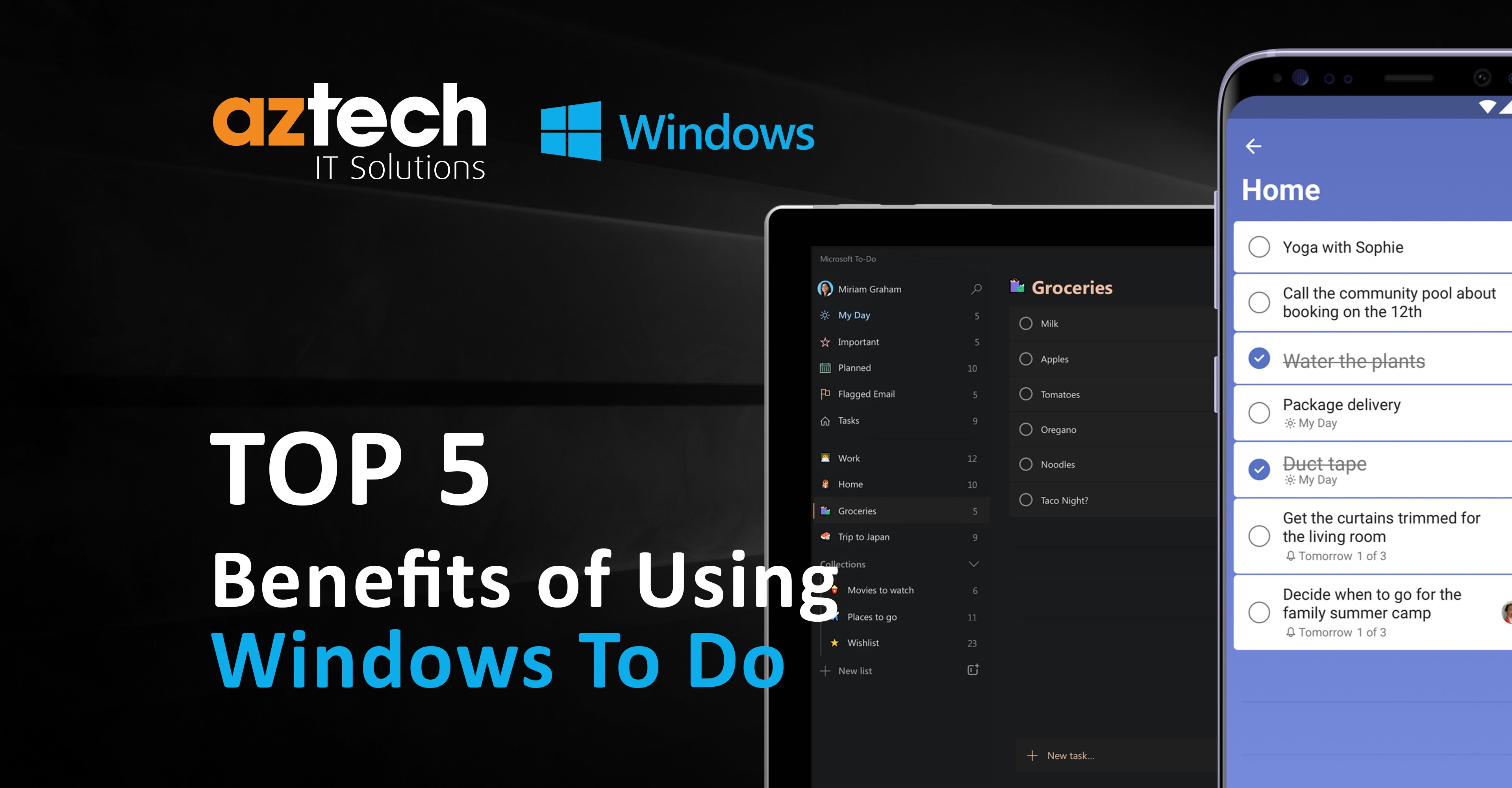
How To Use Microsoft To Do Effectively?
Learn how to get the most out of Microsoft To Do with helpful tips and tricks from our experts. Find out how you can use it effectively and...
Published: April 20, 2021
Best Practices for Business Security with Microsoft 365
Keep your business secure and compliant with Microsoft 365 security by following these 17 best practices.
Published: March 3, 2021
Cyber Security Issues and Challenges for Businesses
Learn about these strategic cyber security issues and challenges faced by businesses in 2024 and how you can prevent these cyber threats.
Published: February 25, 2021
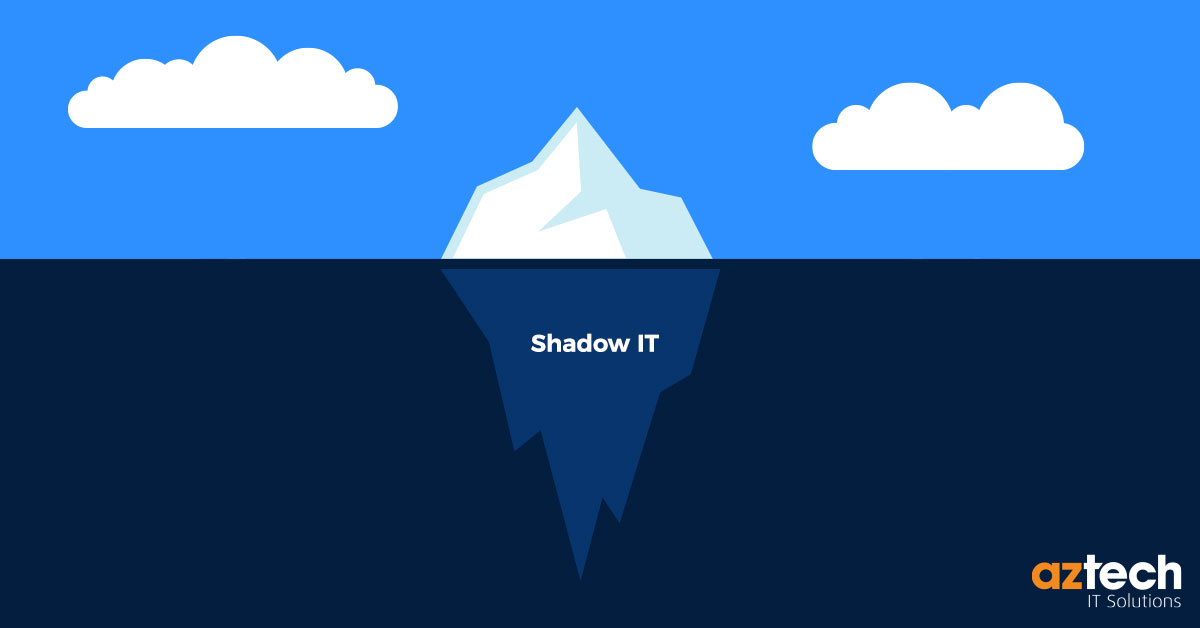
What is Shadow IT - Explained
This blog post will explain what is Shadow IT, it's benefits, risk associated with it, some popular examples of Shadow IT and policy with template.
Published: February 17, 2021

Phishing Related Frequently Asked Questions
Get up to date on the latest phishing threats and trends with this comprehensive list of frequently asked questions from AZTech IT cyber security...
Published: January 29, 2021
How Managed Service Provider are Different to Managed IT Security Services
Learn about the key differences between Managed Service Provider (MSP) and Managed Security Service Provider (MSSP) and services offered.
Published: December 29, 2020

Make Better Decisions for Your Organisation Using Microsoft Power BI
How can Power BI help your business? Learn about how to use Microsoft Power BI to make better decisions for your organisation with AZTech IT.
Published: October 28, 2020
Key Benefits of Windows Virtual Desktop
Discover the benefits of setting up a Windows 10 virtual desktop on Azure, from improved security and scalability to faster deployment times.
Published: October 15, 2020

The Ultimate Guide to Microsoft Secure Score
Understanding your Microsoft Secure Score can help you keep your systems safe. In this blog, we'll take a deep dive into what it is and how to use it.
Published: August 19, 2020
Microsoft 365 Business Standard vs Premium: Key Differences
Unsure which Microsoft package is right for you? Check out our guide breaking down the key differences between Business Standard versus Business...
Published: July 30, 2020

Social Engineering in Hacking Explained
Learn what social engineering in hacking is, read real life examples, and find out ways to prevent from a social engineering attack.
Published: July 24, 2020
Best Password Practices for Better Password Management
Not sure how to create the most secure passwords? Get informed about best password practices today and learn the basics of better password management...
Published: June 29, 2020

Phishing Attacks Impersonating 'Note to Self' Emails
Cybercriminals are spoofing your personal and business emails, such as your organisation's domain, to trick you into giving away your data.
Published: June 18, 2020

Impersonation Attack: Impersonating IT Support
Learn about the different types of impersonation attacks, how they happen, and what you can do to prevent them. Protect yourself from hackers with...
Published: June 4, 2020
How to Protect Your Cloud Data From Hackers
Concerned about data security? Learn how you can protect your cloud data from hackers with these 13 easy-to-follow tips.
Published: May 28, 2020

Digital Transformation Case Study
Find out how we helped an award-winning creative agency through a digital transformation journey and tender process for a new managed service...
Published: March 13, 2020
Cyber Security Threats and Vulnerabilities 101
Learn about the different cyber security threats and vulnerabilities, their causes, types, and what you can do to fight them.
Published: February 13, 2020

How to Build an Effective Cyber Security Strategy: 8 Step Guide
Learn how to build an effective cyber security strategy that will keep your business IT secure from potential threats through this 8 step guide.
Published: February 5, 2020

What is Whaling Phishing?
With whaling phishing on the rise, it's important to understand what this type of attack looks like and how you can protect yourself from it with...
Published: November 6, 2019
Cyber Security Advice & Tips for Small Businesses
Discover the best cyber security tips and advice to keep your small business safe from malicious online threats and learn how to protect your data.
Published: October 30, 2019
The Ultimate Guide to Cyber Dependent Crime
Learn about cyber dependent crime and the types of criminal activities it encompasses including examples. Get tips on preventing these crimes from...
Published: October 9, 2019

Case Study: Red Kite Community Housing
When a leading community housing organisation decided it was time to examine and evaluate their IT infrastructure, they turned to Aztech IT Solutions.
Published: August 7, 2019
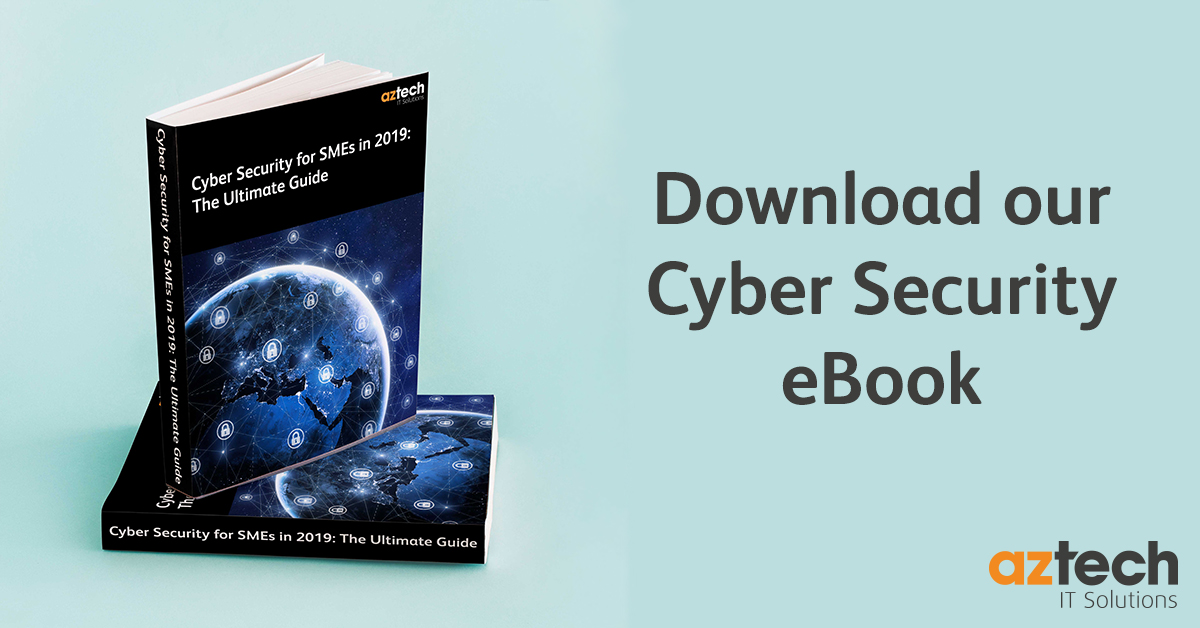
Cyber Security for SMEs in 2019: The Ultimate Guide
Download our eBook to learn about the different types of cyber threats to your business and discover how you can start protecting your business.
Published: July 31, 2019

What is a Phishing Attack?
Phishing is a type of Social Engineering that can drastically damage your business, but did you know there are different types of phishing attacks?
Published: July 17, 2019

Types of Cybercrime Businesses Must Protect Against
Learn in detail about 10 different types of cybercrime businesses must protect against from AZTech experts. Safeguard your business from...
Published: July 10, 2019
What Should You Do If You're The Victim Of Cybercrime?
Don't panic, learn what steps you should take if you fall victim to cybercrime and how Aztech can help protect your online security.
Published: July 3, 2019

What is a Disaster Recovery Plan - Explained
Learn the ins and outs of disaster recovery planning, including essential tips, how to create an effective DR plan with examples, templates, and more!
Published: June 26, 2019
The Benefits of Upgrading to Windows 10
Windows 10 is a great operating system, and the perfect next step from Windows 7; find out how Windows 10 can benefit your business.
Published: June 12, 2019
What is Microsoft Enterprise Mobility + Security?
Discover the benefits and features of Microsoft's powerful enterprise mobility and security solution, and how it can enhance your business's digital...
Published: May 29, 2019
Windows 7 to Windows 10: The Risks You Need to Know
Still using Windows 7? Find out the potential risks and why upgrading to Windows 10 is essential for your device's security and performance.
Published: May 22, 2019

Windows 7: End of Support
What exactly does End of Support mean? Microsoft ends support of Windows 7 on January 14th 2020, find out what this means for you and your business.
Published: May 15, 2019

Cyber Security for Mobile Phones
Don't let your mobile phone be vulnerable to cyber threats - learn more about the security measures and tips you can take to keep it safe from...
Published: May 8, 2019
5 Cybercrime Prevention Tips for 2024
Staying one step ahead of cybercriminals is key to preventing cyber crime. Learn the latest cybercrime prevention tips in this helpful guide from...
Published: May 1, 2019
Cybersecurity Risks of Working from Home in 2024
Discover the top seven cybersecurity risks of working from home in 2024, with statistics and learn the best practice of cyber security in remote...
Published: April 15, 2019

Why Does Your Business Need Cyber Essentials?
Learn about the four key benefits of implementing Cyber Essentials and safeguard your company's data today with aztech.
Published: March 27, 2019

Microsoft Teams Tips and Tricks 2024
Are you looking for the latest tips and tricks to get the most out of Microsoft Teams in 2024? Get updated with the latest hacks and insider...
Published: February 19, 2019

Get the Most Out of Outlook 365 with These Tips and Tricks for 2024
Discover the latest tips, tricks, and hacks for Outlook 365 to increase efficiency and maximize your workflow in 2024.
Published: February 15, 2019

How Can Digital Transformation Benefits My Organisation?
Learn the seven key benefits of digital transformation and why it's so important for businesses in order to remain competitive.
Published: January 18, 2019

How to Select the Right Managed IT Services Packages
Learn how to identify your organization's IT needs and select the right managed IT services packages for maximum performance, productivity, and...
Published: October 3, 2018

How Aztech Can Ensure a Smooth Transition to Your New Premises
Moving offices can be stressful, but with the help of Aztech, the transition will be seamless and hassle-free. Learn how we make it possible.
Published: October 1, 2018

Key Differences Between Cloud Computing vs. Traditional
Understand the key differences between cloud computing and traditional IT infrastructure to make an informed decision for your business.
Published: September 7, 2018

10 Effective IT Resource Management Best Practices
Looking to streamline your IT resource management process? Here are 10 best practices you can implement now for better organisational efficiency.
Published: August 31, 2018

Security Risks of Cloud Computing & How to Prevent Them
Get ahead on the security risks for cloud computing in 2024. Learn about the top 18 trends, and discover must-know prevention tips from experts at...
Published: July 30, 2018

How to Protect Your Digital Assets in 2024: Step by Step Guide
Get ahead of the game and protect your digital assets now! Learn how to set up an effective cybersecurity plan with this step-by-step guide from...
Published: June 4, 2018

Why Choose Aztech as Your IT Service Provider?
Are you looking for reliable and efficient IT services? Discover why Aztech is the top choice for businesses of all sizes.
Published: May 3, 2018

What is the Downtime of Changing IT Providers?
Learn about the potential downtime involved when changing your IT provider and how to minimise disruptions in your business operations with these...
Published: May 1, 2018

9 Effective Ways to Back Up Your Data in 2024
Make sure your data is safe and secure with these nine tips on how to back up your data. Learn the latest best practices so you can protect what...
Published: April 23, 2018

How To Migrate To The Cloud Successfully
There are many benefits for any business to migrating to the cloud. However, it’s also an exercise that requires some planning and can have an impact...
Published: April 18, 2018

Public, Private or Hybrid Cloud: Exploring the Major Differences
Learn about the major difference between public, private, and hybrid cloud deployments to find out which option is best suited for your business.
Published: April 16, 2018

What are the Common Challenges of Moving to the Cloud?
Learn about common challenges of moving your business to the cloud, and how to prepare for a successful transition.
Published: March 27, 2018

10 Reasons to Move to The Cloud for Businesses
Ready to move your business operations to the cloud? Check out these ten reasons why you should consider taking advantage of cloud solutions today!
Published: March 26, 2018
Types of IT Outsourcing
Learn the different types of IT outsourcing and how they can help you through examples from AZTech. Find out more about this cost-effective solution.
Published: February 28, 2018

On Premise vs Cloud: Key Differences Explained
Not sure whether you should opt for an on-premise or cloud solution? Learn the key differences between the two and make an informed decision with our...
Published: February 16, 2018

The Ultimate Guide to IT Capacity Planning & Management
Uncover the importance of IT capacity planning and management, how they can improve your business operations, and best practices you can follow.
Published: February 14, 2018

Things to Consider When Selecting an IT Provider
Choosing the right IT provider is crucial for the success of your business. Learn about important factors to consider before making this decision.
Published: February 5, 2018

5 Tips to Smooth the Transition of IT Service Providers
Are you looking to change your IT service provider? Make sure the transition goes smoothly with these five tips from Aztech.
Published: February 2, 2018

How to Measure Your IT supplier's ROI Effectively
Unsure if your IT supplier is providing a good return on investment? Learn how to accurately measure and analyse their ROI with our step-by-step...
Published: January 29, 2018

How to Migrate from On Premise to Cloud
Make the switch to cloud computing with this step-by-step guide on how to migrate from on-premise solutions, with cloud migration strategy explained.
Published: January 26, 2018

What Are Co-Managed IT Services and Why Do You Need Them?
Get an understanding of what co-managed IT services are and why your business needs them, with a breakdown of the different types of services...
Published: November 8, 2017

How to Cope with Changing Technology
Are you feeling overwhelmed with the ever-changing technology in 2024? Learn how to cope up with this changing technology and keep yourself updated.
Published: October 4, 2017
Boost Your Cybersecurity with Aztech's Cyber Essentials Certification
Learn how Aztech secured their digital presence by achieving the prestigious Cyber Essentials certification, and how your business can benefit from...
Published: May 11, 2017

Remote working in snowy conditions
Some parts of our region could see some sleet and snow fall around rush hour this evening with severe weather warnings in place for the country.
Published: January 12, 2017

The Top 5 Security Issues That Companies Face in 2017
The top 5 IT security issues businesses must face in 2017
Published: January 4, 2017

7 Reasons to Outsource Your IT Support
Struggling with managing your company's IT support in-house? Discover the top reasons why outsourcing can save you time, money, and headaches.
Published: November 23, 2016

What is Email Overload and How to Manage it
Are you overwhelmed with emails? Check out our tips on how to manage email overload and finally get organized by fixing it.
Published: October 12, 2016

Common Cloud Migration Mistakes Your Business Can Avoid
Have you been thinking of moving to the cloud, but unsure of the potential pitfalls? We'll help you to identify the most common cloud migration...
Published: September 5, 2016

Work is Underway for Our New Offices
Work is underway at the new Aztech IT Solutions offices based near central Milton Keynes
Published: August 9, 2016

Cloud vs On-Premise Security: Which is More Secure?
Don't know which one to choose between cloud vs on-premise security for your business? Here's a comprehensive guide to help you decide the best...
Published: January 20, 2016

Technology Trends to Look Out for in 2024-25
Learn about latest technology trends you should keep an eye out for in 2024 with future prediction of 2025 from our expert guide.
Published: January 13, 2016
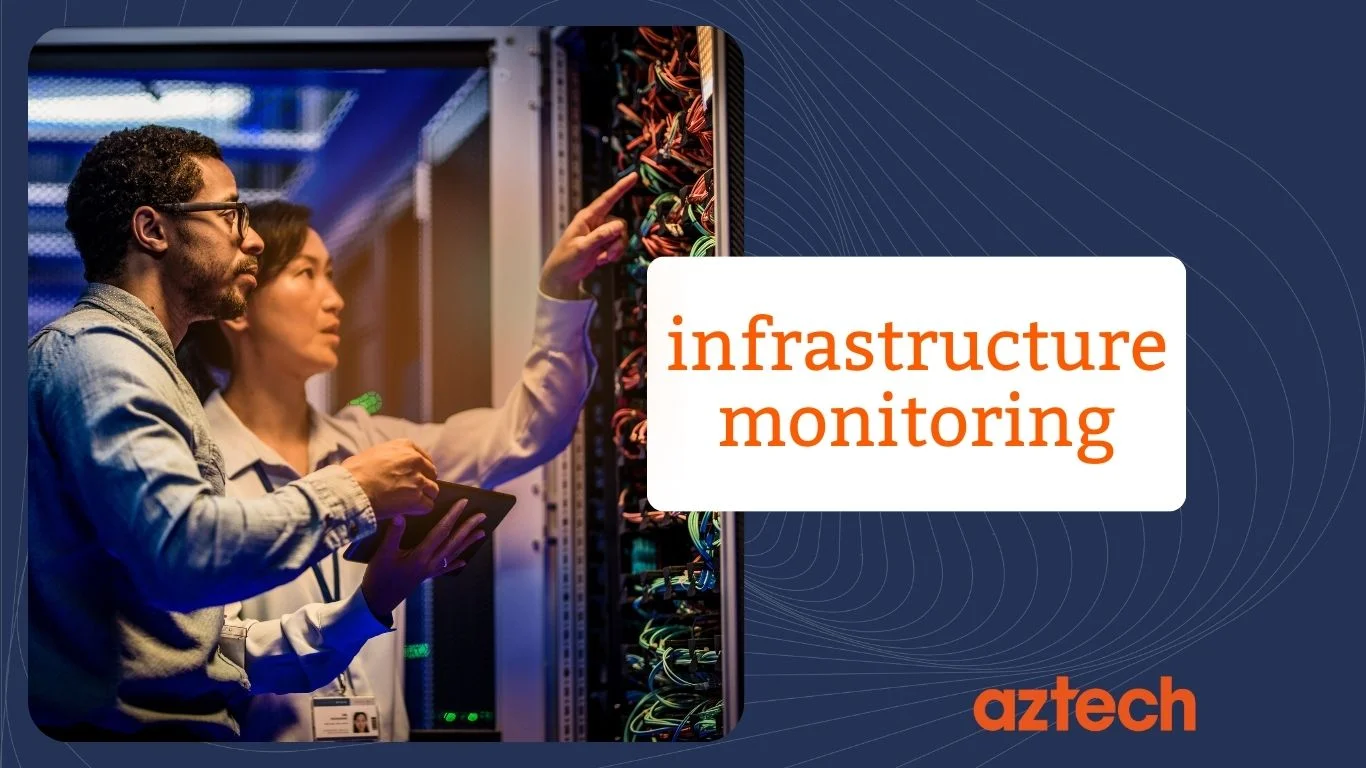
The Ultimate Guide to Infrastructure Monitoring
Keep your network running smoothly with our comprehensive guide to infrastructure monitoring. Improve performance and avoid downtime with our expert...
Published: November 25, 2015

Benefits and Challenges of Microsoft Azure
Learn about the unique benefits of using Microsoft Azure, what challenges might appear when integrating into your business in 2024 and why it's...
Published: November 25, 2015

New Microsoft Office 2016: Improved Collaboration and Productivity for Businesses
Discover the enhanced features and benefits of Microsoft Office 2016 for businesses, including improved collaboration tools and increased...
Published: September 28, 2015

Benefits of a Cloud Based Phone System
Are you looking for an efficient and cost-effective way to connect with customers? Learn about the key benefits of cloud-based phone systems today.
Published: September 23, 2015

Microsoft Office 365 Reigns Supreme as the Top Enterprise Cloud App
Discover why Microsoft Office 365 is the top choice for businesses today and what industries are seeing the most success with this powerful cloud app.
Published: September 2, 2015

Disaster Recovery: Why 90% of Businesses Fail After Losing Data
Don't let your business become a statistic. Learn the crucial role disaster recovery plays in keeping businesses afloat and how to protect your data...
Published: August 6, 2015

Windows 10 Launch: What to Expect and How to Prepare
Find out everything you need to know about the highly anticipated launch of Windows 10, including new features and tips for upgrading.
Published: July 21, 2015

Advantages of Using SharePoint
Learn the benefits and drawbacks associated with using Microsoft SharePoint Online. Uncover key considerations for businesses looking forward to it.
Published: September 26, 2014

Unleashing the Power of Microsoft Lync: Exploring its Advantages
Discover how Microsoft Lync can benefit your communication and collaboration processes and enhance productivity in your workplace.
Published: September 12, 2014

Factors to Consider When Choosing a Cloud Data Backup Service
Unsure which cloud data backup service is right for your business? Our comprehensive guide covers the key factors to consider in making your decision.
Published: July 23, 2014